Update centreline address ranges tool
This tool locates address points on the left and right side of a road and then updates the address range fields for the road segment.

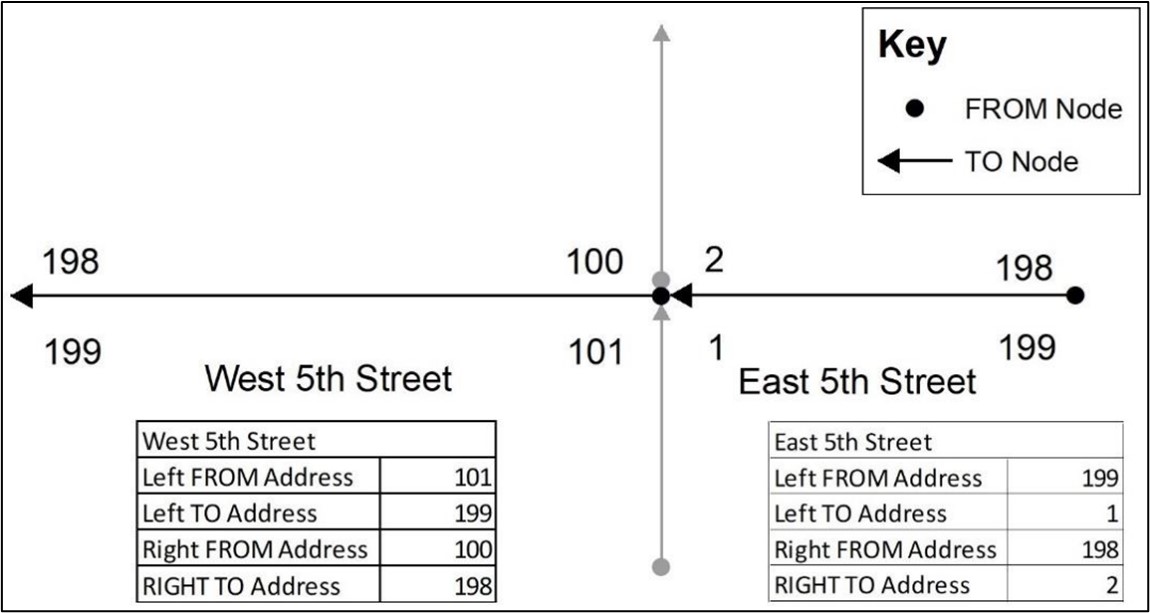
In the RoadCenterLine layer, each feature has a begin point and an endpoint. The FROM Node is the beginning point while the TO Node is the endpoint. Each has a left side and a right side relative to a begin node and an end node.
The Left FROM address is the address number on the Left side of the road segment relative to the FROM Node. The Left TO address is the address number on the Left side of the road segment relative to the TO Node.
The Right FROM address is the address number on the Right side of the road segment relative to the FROM Node. The Right TO address number is the address number on the Right side of the road segment relative to the TO Node.
FROM address can be higher or lower than the TO Address
Example 1: Address ranges example single road
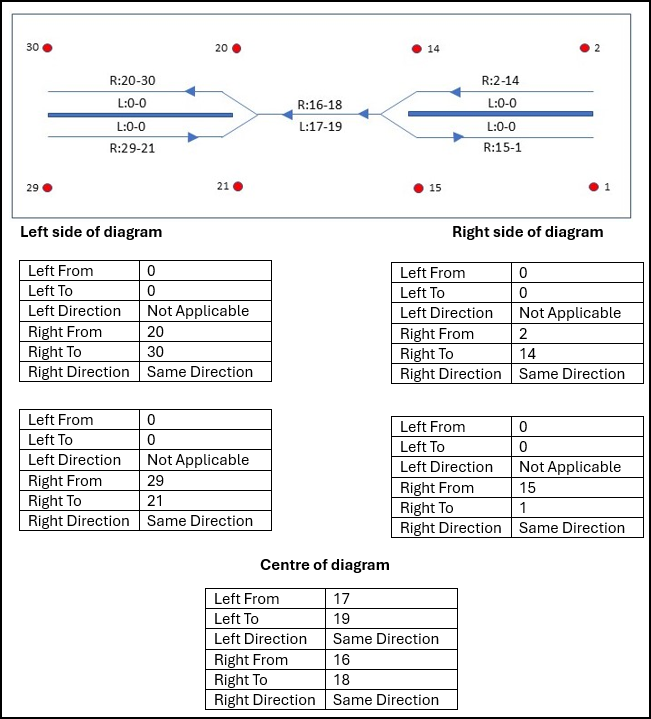
Example 2: Road centreline divided by median
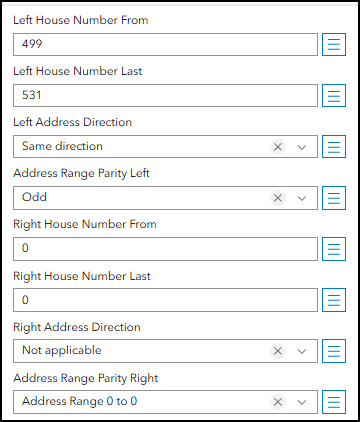
When a road centreline is divided by a median one side the road range should contain a FROM and TO address value of 0 and parity of Range 0 to 0. The arrows on the road centreline represents traffic flow.
Fields modified by the tool
The fields modified by the Update centreline address ranges tool are:
| RoadSegment Fields | Description |
|---|---|
| FromAddr_L | Left House Number FROM |
| ToAddr_L | Left House Number TO |
| l_adddirfg | Left Address Range Direction |
| Parity_L | Left Address Parity |
| FromAddr_R | Right House Number FROM |
| ToAddr_R | Right House Number TO |
| r_adddirfg | Right Address Range Direction |
| Parity_R | Right Address Parity |
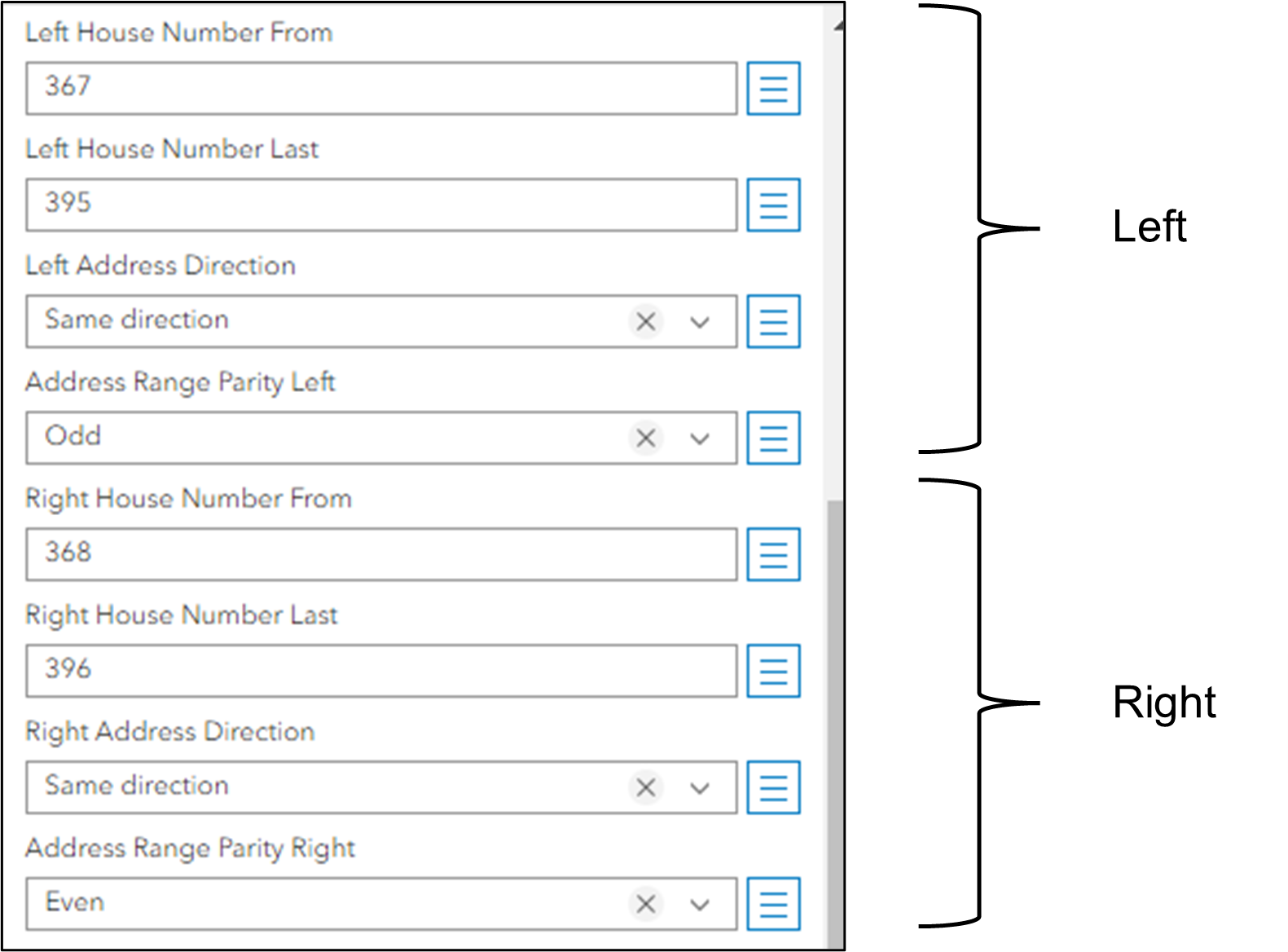
After the Update centreline address range tool is executed, the left/right attributes are updated.
- Parity is set as follows:
- Odd if all address points are odd numbers.
- Even if all address points are even numbers.
- Both if address numbers are a mixture of odd and even numbers.
- Address Range 0 to 0 if no address points were found (FROM/TO are set to zero).
- Address direction is set as follows:
- Same direction if FROM/TO range is in the same direction as the digitizing direction of the road.
- Opposite direction if FROM/TO range is in the opposite direction as the digitizing direction of the road.
- Not applicable if the FROM/TO range is set to Address Range 0 to 0.
Zero address numbers
In some jurisdictions, a leading zero is used in an address number. Where there are leading zeros, they are included in the Address Number Prefix and not in the Address Number.
Occasionally zero is issued as a valid address number (e.g., 0 rue du Trésor). Zero should not be used to indicate there is no address number except when there is no integer portion of the complete street number (e.g., 1/2 Fifth Avenue). In this case, “0” MUST be entered for the Address Number (e.g., “0 1/2 Fifth Avenue”). The “1/2” text is stored in the Address Number Suffix.
NG Data Manager supports a zero value when creating an address point and when calculating the address ranges on a road centreline. To allow a zero-address number, refer to Configurator. By default, zero is not allowed.
Determining parity and digitizing direction for zero address numbers
When determining the parity of the FROM/TO on the road centreline, zero address is considered an even number.
- If there is only one address point on the left or right side and the address number is zero (0). The road centreline fields will be set to:
| FROM | TO | Parity | Digitizing Direction |
|---|---|---|---|
| 0 | 0 | Even | Not Applicable |
- Assume zero (0) is one of the address numbers on the left or right side. The address range is zero to 50 (0 to 50) and all intermediate numbers are even. The road centreline fields will be set to:
| FROM | TO | Parity | Digitizing Direction |
|---|---|---|---|
| 0 | 50 | Even | Same Direction |
- Assume zero (0) is one of the address numbers on the left or right side. The address range is zero to 49 (0 to 49) and all intermediate numbers are even and/or odd. The road centreline fields will be set to:
| FROM | TO | Parity | Digitizing Direction |
|---|---|---|---|
| 0 | 49 | Both | Same Direction |
- When no address points are found. The road centreline fields will be set to:
| FROM | TO | Parity | Digitizing Direction |
|---|---|---|---|
| 0 | 0 | Address Range 0 to 0 | Not Applicable |
Update Centreline Address Ranges Workflow
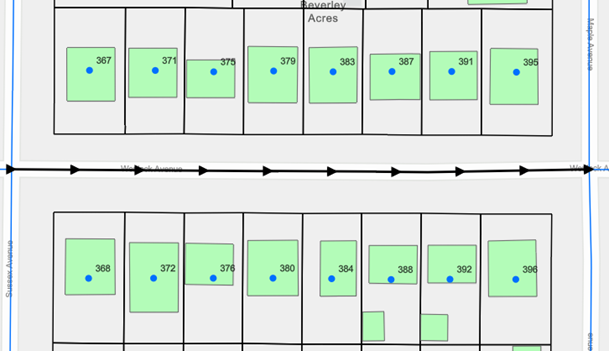
The following diagram illustrates the tool. Address numbers from 367 to 395 appear on the left side of the road. Address numbers from 368 to 396 appear on right side of the road.
- Click Road editor.
- Click Update centreline address ranges.
- Click one of the selection tools:
- Single Feature
- Line intersection
- Lasso
- All in extent Click the map to select the current extent.
The editor panel appears with attributes for each selected road. If more than one road segment is selected.
Click Search buffer to adjust the search buffer for the tool.
- In most cases you can keep the Search buffer's default setting.
Set the search buffer size to include the parcels or address points which are potential FROM/TO addresses.
Click Update to update the address ranges for all roads in the editor panel.
- When updating a large number of roads the Update button changes to a spinning wheel and the word Stop appears. You can click Stop at any time to stop the process mid stream. Click Update again to restart the process or select a different set of roads.
Processing a large number of roads can be time consuming. Do not select the entire map to process. Select a city block or subdivision.
- Review the Results Report. The report includes Information, Warnings, and Error messages. The table is interactive. Hover over a row to highlight and click to zoom to the road. The FROM/TO address is highlighted and the editor panel displays the road attributes currently highlighted. You can override the changes to the FROM/TO fields in the editor panel if required
- Click Save to save all changes.